Edit Account
You can edit any information regarding your account from this tab.
- From the left-side navigation menu, click My Account.
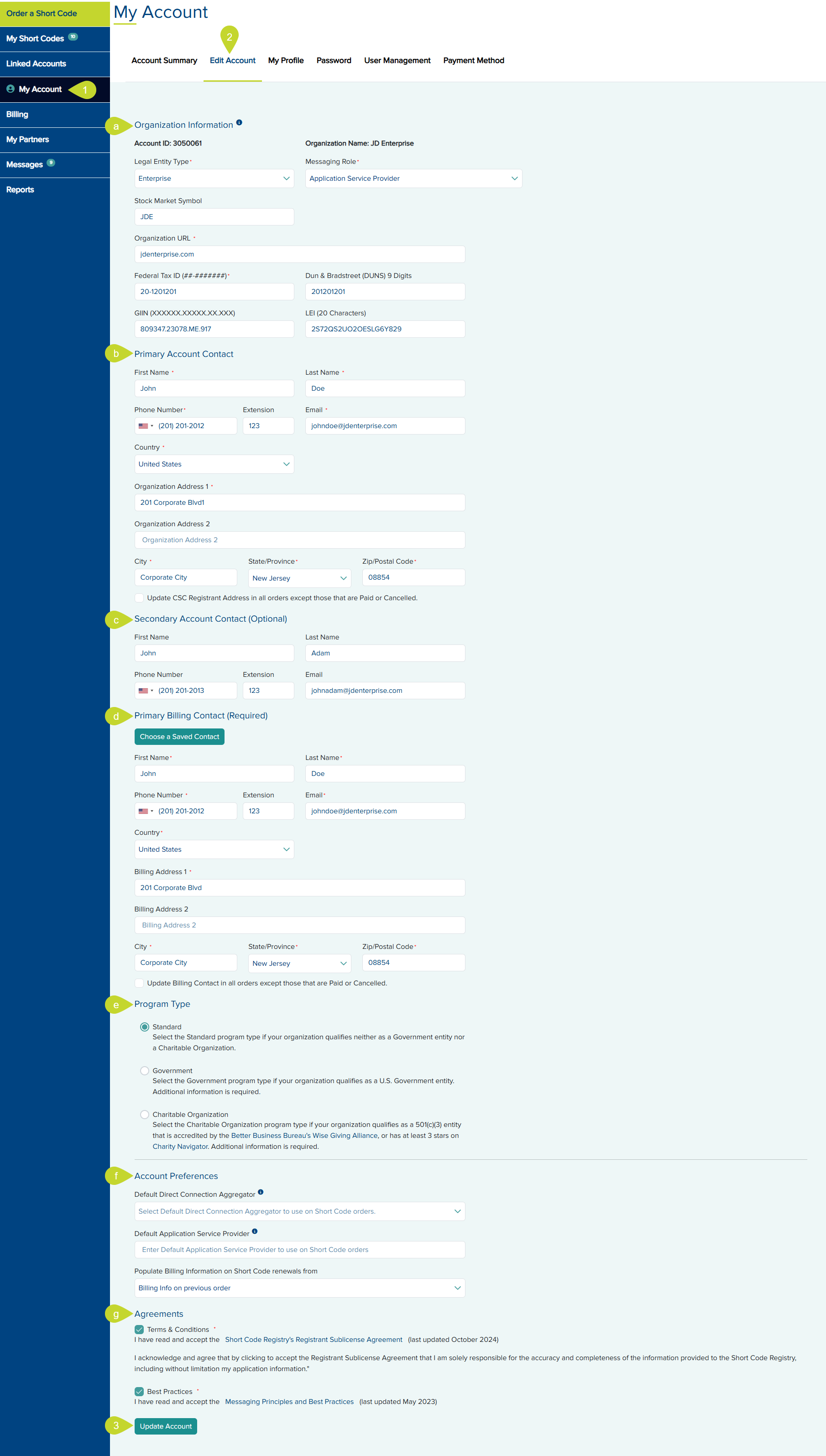
- On the My Account page, click Edit Account.
- The Organization Information such as Legal Entity Type, Stock Market Symbol, Organization URL, Federal Tax ID (##-#######), Dun & Bradstreet (DUNS) 9 Digits, GIIN, and LEI can be edited in this section.
- The Primary Account Contact, such as your First Name, Last Name, Phone Number, Ext, Email, Country, Organization Address 1, Organization Address 2, City, State/Province, and Zip/Postal Code, can be edited in this section. You can also enable
- The Secondary Account Contact (Optional), such as First Name, Last Name, Phone Number, Ext, and Email, can be edited in this section.
- The Primary Billing Contact (Required), such as First Name, Last Name, Phone Number, Ext, Email, Country, Organization Address 1, Organization Address 2, City, State/Province, and Zip/Postal Code, can be edited in this section. You can also enable Note: Click the Choose a Saved Contact button for another saved address.
- The Program Type can be changed to Standard, Government, or Charitable Organization.
You may edit the Default Purchase Order Number for Monthly Billing in the provided field. - In the Account Preferences section, you can
- Edit the Default Direct Connection Aggregator from the drop-down.
- Enter a Default Application Service Provider if you wish
- Choose Populate Billing Information on Short Code renewals from either Billing Info on Previous Order or Primary Billing Contact from the account information.
- Read and agree to the Terms & Conditions in the Agreement section by clicking the checkbox.
- Click Update Account. A success message is displayed.